Microinjection Videos
- - August 05, 2022
The ATC2000 is a low noise heating system for maintaining animal body temperature during expirimental procedures. Here we show you how to use the adaptive mode on the ATC2000 system.
- Press the Config button to access the configuration menu. Press the Config button again until the adaptive mode Enable displays.
NOTE: If the temperature source is set to heater plate, then the adaptive mode cannot be enabled.
2. Press the Up or Down button to enable or disable adaptive mode.
3. Press the Display button to save the new parameters or press the Config button to toggle through the rest of the parameters.
Once the adaptive mode is enabled, Adaptive appears as the mode on the main display window. If you press the Display button again, the alternate temperature displays along with a timer that counts up from the last sampled time. In this case, the temperature was sampled 5 minutes and 42 seconds ago. If the interval is set to 10 minutes, the temperature will be sampled again in...more
- - April 27, 2022
The ATC2000 is a low noise heating system for maintaining animal body temperature during experimental procedures. The ATC2000 uses a digital PID controller to regulate the application of power to the heating plate to achieve the desired temperature at the monitored sensor. PID stands for Proportional, Integral and Differential. Here’s how PID control works:
The default set point is 37°C, but you can configure it. The controller calculates the error, which is the difference between the present temperature and the desired temperature.
Error = Monitored temperature – Set point
Three individual components are derived by applying different functions to the error.
The default set point is 37°C, but you can configure it. The controller calculates the error, which is the difference between the present temperature and the desired temperature.
Error = Monitored temperature – Set point
Three individual components are derived by applying different functions to the
- The error is multiplied by the proportional...more
- - January 16, 2022
The DMF1000 is a microprocessor-controlled microforge designed for fabrication of both small patch clamp glass pipettes and larger injection pipettes. The DMF1000 can be used for polishing patch clamp pipettes, microforging holding pipettes, microforging beveled injection pipettes, and for calibrating pipette tips for microinjection. Here we will show you how to install the microforge filament on your microscope.
- After you turn on the power to the microscope, you must choose the desired filament.
- The small filament MF200-H4 is better suited for microforging pipettes 1 µm or less.
- The large filament DMF1000-H5 should be used for larger pipette forging, forming and sizing.
- Mount and connect the heating filament. Push the filament into the clamp about halfway, with the filament under the objective clamp. You can adjust the position of the filament vertically and laterally in relation to the objective.
- Lower the stage all the way and mount the filament holder on the objective. Slide...more
- After you turn on the power to the microscope, you must choose the desired filament.
- - January 16, 2022
The DMF1000 is a microprocessor-controlled microforge designed for fabrication of both small patch clamp glass pipettes and larger injection pipettes. The DMF1000 can be used for polishing patch clamp pipettes, microforging holding pipettes, microforging beveled injection pipettes, and for calibrating pipette tips for microinjection. Here we will show you how to configure the DMF1000 controller.
- Power up the DMF1000 unit. Connect the cord to the power input jack.
- Turn the power switch on. Then, plug the filament pins into the rear panel of the controller and plug the filaments into the sockets.
- After initialization, the setting that had been stored in memory location 0 displays. The Heat and Timer displays illuminate, indicating that the unit is powered up. The first time the unit is turned on, both readouts display 000. The TIME selection is set to Auto. The MODE selection is Heat. The Air On light is off, and the Heat On light is off.
- For demonstration, I will hold the filament...more
- - July 22, 2021
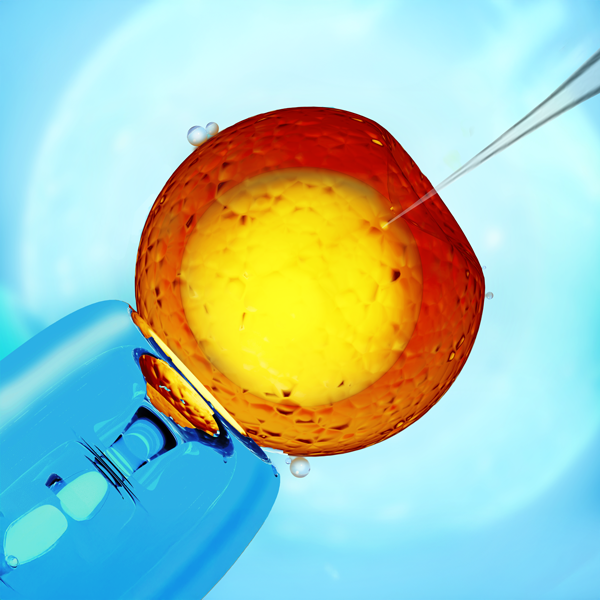
Do you want to take the next step in your CRISPR-CAS9 projects, making the injection of biomolecules in your cell lines more efficient? You can now increase the viability of injected embryos with WPI’s MICRO-ePORE, which offers improved repeatability and functionality for pinpoint cell penetration for targeted microinjections in transgenesis.
Improve Embryo Survival with Pinpoint Cell Penetration
Principle of MICRO-ePORE™ Technology
- Classic Microinjection of biomolecules with capillaries causes permanent damage to the cell membrane, and the chance of lysis is high.
- Electroporation is a shot-gun, random approach that cause lots of membrane holes in cells, also increasing the chance of lysis.
- The MICRO-ePORE uses a very localized rearrangement of the charged double lipid membrane, allowing the biomolecules solution to get into the cells during injection. This leaves the rest of the membrane intact, reducing lysis and improving cell survival.
MICRO-ePORE in the Field
The MICRO-ePORE...more
- - May 26, 2021
This video shows how to setup the heavy boom microscope stand (502004), which can be used with a PZMIII or PZMIV microscope head. The PZMIII and PZMIV require the 502009 76mm focus mount. The setup of the 505606 heavy boom stand is identical. The 505606 uses the 505610 focus mount that is designed for use with the Enhanced Reality Macroscope. The focus mounts are sold separately.
Stand Components
These are the pieces of the boom stand.
(1) Heavy Base
(1) Vertical Post
(1) Guard Ring
(1) Horizontal Bar
(1) Cross Block
(1) Anchoring Screw with Locking Washer
(1) Hex Key
(1) Clutch Handle
(3) Adjustment Knobs
(1) Boom Locking Screw
(1) Post Cap
Set Up the Stand
- Set the heavy base up on one edge. This may require two people, because the base is heavy. Have one person position the vertical post in the recessed circle in the center of the top side of the base. The post will be perpendicular to the base. Let a second person place the locking washer on the anchoring screw and insert it into...more
- - May 26, 2021
This video shows how to setup the articulating arm clamp stand for a microscope (502007), which can be used with a PZMIII microscope head. The PZMIII requires the 502009 76mm focus mount. The setup of the 505607 articulating arm stand is identical. The 505607 uses the 505610 focus mount that is designed for use with the Enhanced Reality Macroscope. The focus mounts are sold separately.
Stand Components
These are the pieces of the stand.
(1) Table clamp base
(1) Middle horizontal bar
(1) Adjustable forearm
(2) Clutch handles
(2) Adjustment screws
(2) Ring washers (white)
Set Up the Stand
- Loosen the two screws on the table clamp by rotating them counter-clockwise. Position the clamp so that it wraps around the edge of the table with the screws located under the table. Tighten the screws by rotating them clockwise to securely mount the stand on the table.
- Place a white ring washer on top of the table clamp and line it up with the hole. Then, insert the post of the middle horizontal...more
- - May 26, 2021
This video shows how to setup the post stand for a microscope (502007), which can be used with a PZMIII microscope head. The PZMIII or PZMIV require the 504947 76mm focus mount. The setup of the 505608 post stand is identical. The 505608 uses the 505609 focus mount that is designed for use with the Enhanced Reality Macroscope. The focus mounts are sold separately.
Stand Components
These are the pieces of the stand.
(1) Base
(1) Vertical Post
(1) Vertical Post Extension
(1) Guard Ring Support
(1) Reversible Plate
(1) Clutch Handle
(1) Post Cap
(1) Focus Mount
504947 Focus Mount included with the 503102 stand, or
505609 Focus Mount included with the 505608 stand
(1) Instruction Manual
Set Up the Stand
- Set the base flat on a solid table or work surface. Screw the threaded end of the vertical post into the black support block on the base. Use a hex key to tighten the screw in the side of the black support block to secure the vertical.
- Screw the post extension into the top of the vertical...more
- - April 26, 2021
The PUL-1000 is a microprocessor controlled, four-stage, horizontal puller for making glass micropipettes or microelectrodes. Here is how to run a program that will pull two identical microelectrodes.
Loading a Program
We will use the keypad to navigate through the display.
- Use the arrows to navigate to LOAD (00). The top and bottom arrows on the keypad navigate numbers in increments of 1. The left and right arrows on the keypad navigate numbers in increments of 10. Press ENTER. The number will start blinking.
- Use the arrows to navigate to the program number you would like load. Once you reach the desired program, press ENTER to run the program and pull your glass.
Creating a New Program
- Use the arrows to navigate to STEP 1 - HEAT. Press ENTER. The number will start blinking.
- Use the arrows to set the desired value for the heat. Press ENTER.
- Navigate to STEP 1 – FORCE. Press ENTER. The number will start blinking.
- Use the arrows to set the desired value of force. Press ENTER.
- Navigate...more
- - April 22, 2021
The PUL-1000 is a microprocessor controlled, four-stage, horizontal puller for making glass micropipettes or microelectrodes. Here is a quick overview to get you started quickly.
Quick Start Setup
- Plug the power cord into the wall outlet. An LED light on the power supply illuminated when the unit is connected to power.
- Plug the power cord into the rear panel of the PUL-1000. Then, the power switch on the side panel illuminates.
- Press the Power button to turn on the display.
- To open the glass capillary clamps, place your thumb under the clamp and depress the release button with your index finger. This allows the carriages to move freely.
- Push the carriages together toward the center.
- Install the silicone glass capillary clamp pads matching the outer diameter (OD) of the glass capillary, by sliding them into the clamp pad spots on the clamps.
- Mount the glass capillary onto the carriage and secure it with the glass clamps.
- On the LCD display, choose the correct sequence. If you do not...more
- - April 21, 2021
The PUL-1000 is a microprocessor controlled, four-stage, horizontal puller for making glass micropipettes or microelectrodes. Here we will see how to load a piece of glass into the carriage.
The glass capillary is held by clamps mounted on two movable carriages. Both carriages synchronously slide as a program is executed.
- Manually slide the carriages together when you are loading the glass.
- To open the clamps, place your thumb under the clamp and depress the release button with your index finger.
- Slide the glass capillary into the groove from one side. Slide it through the center of heating filament onto the other side. If you want two equivalent length micropipettes, be sure to center the glass in the filament.
- Secure the glass capillary with the clamps.
That’s it. Now you’re ready to load a program. If you have any questions, just give us a call.
- - April 21, 2021
The PUL-1000 is a microprocessor controlled, four-stage, horizontal puller for making glass micropipettes or microelectrodes. Here are the resolutions for some common issues with the puller.
Puller Stops
If the puller stops in the middle of a pull and the unit beeps, one of two issues may be the culprit.
- The unit may be over heating. Allow the unit time to cool down before attempting to pull more glass.
- If a program fails in the middle of a pull, you may have exceeded the parameters of the unit. For example, when you add up the distance of travel for all the stages, you may have exceeded the maximum range of travel. Check your program. You may need to alter the heating or travel parameters to conform with the unit’s maximums.
Glass Doesn’t Pull Well
If the glass does not pull well, look at one of these possible causes.
- The parameter may not be set properly for the properties of the new glass. Run the Glass Softening Test to establish a new baseline heating parameter.
- The filament...more
- - April 21, 2021
The PUL-1000 is a microprocessor controlled, four-stage, horizontal puller for making glass micropipettes or microelectrodes. We will show you how to run a glass softening test.
You should run the Softening Test when:
- You change the filament
- Lot numbers or capillary types change
- You create or modify a program
- The ambient environment changes
- Press the STOP key to quit any running program. The following window displays.
- Mount a glass capillary on the carriage.
- Press the START key to run the Glass Capillary Softening Test. The heating power increases gradually. The heating stops when the glass begins to move.
- Record the heating power. This is the baseline heating value for the glass type tested. It is a good starting point for the first stage of your program.
If you have any questions, just give us a call.
- - April 08, 2021
Let’s look at the PUL-1000, a microprocessor controlled, four-stage, horizontal puller for making glass micropipettes or microelectrodes. Here we will examine the design of the unit.
Tempered Glass Lid
For safety, the lid should be closed whenever you are pulling glass or moving the unit.
Capillary Glass Clamp Pads
These two silicone clamp pads securely hold the glass when you are pulling pipettes. Check the glass OD and install appropriate pads accordingly.
Heating Filament
The PUL-1000 comes with a circular platinum/iridium box filament, which may be easily replaced with a 2.5 x 2.5 mm box filament (WPI #13834).
Glass Groove
Slide a single piece of capillary glass into the groove from one side or the other. The groove helps line up the glass to slide easily through the filament and hold it in the proper position during pulling.
Carriage
The carriage should move freely when the clamps are unlocked. It slides apart as the glass is pulled. Then, you can manually slide the two ends...more
- - February 24, 2021
NanoFil™ is a unique low volume syringe developed for improved microinjection in mice and other small animals. RPE and IO kits are specially designed for “hands-free” and oil-free sub-microliter injection. Originally developed for retinal pigment epithelium and intraocular injection, they can also be used for other applications.
The NanoFil syringe system utilizes a seal system that is based on a 0.46 mm shank diameter. Any needle or tubing with an outside diameter of 0.46 mm should fit the NanoFil’s seal system. Here is how to install your needle in a way that prevents damage to the gasket and keeps your needles straight.
PRO TIP: Always use surgical gloves to prevent the oils from your skin from affecting the needle or the gasket.
- To change or install a needle, loosen the screw cap by turning it counterclockwise to release the compression of the seal. If there is a needle in place, it should pull out easily.
- Remove the screw cap and the gasket from the syringe.
- Install...more
- To change or install a needle, loosen the screw cap by turning it counterclockwise to release the compression of the seal. If there is a needle in place, it should pull out easily.

Recent Posts